
| Bookmark Name | Actions |
|---|
How to Extend the Existing Features
This page explains how to extend the digital banking through various examples. It is assumed that you are already familiar with the Banking App architecture and can build them. The idea is that the core objects and components are protected and any customization and extensions are done in such a way that the upgrade path is maintained and an effective "merge" of custom requirements is supported. The architecture has multiple layers, fully decoupling the UX/UI and integration layers, effectively abstracting away customization to the core product.
The Digital Banking reference architecture (MVC) provides extension points in the following layers:
- Presentation
- Business
- View
- Data Model
- Integration
See Extension Points for more information.
How to show a new form instead of the existing one
This example explains how you can show a new form instead of the existing one.
- The Presentation layer is responsible to show the forms. With the
presentUserInterfaceAPI, theformNamewhich you pass as input is displayed in the app. - Consider the following account module:
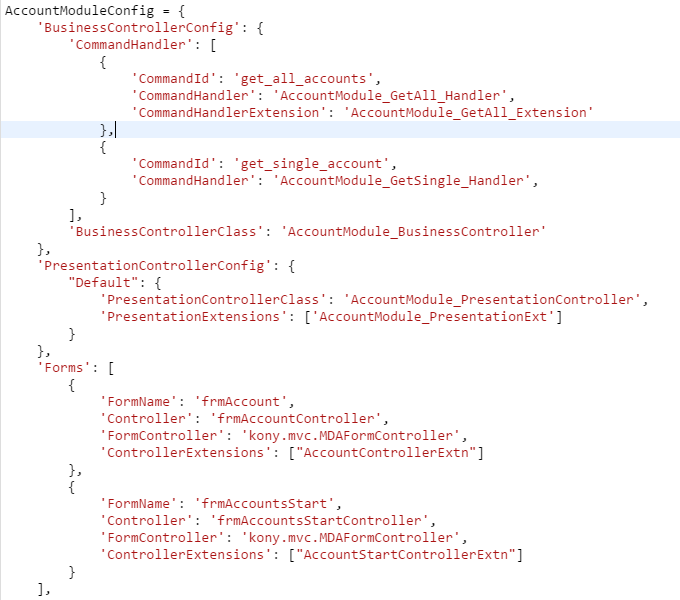
- This Account module has a business controller, two business implementations/commands, and a presentation controller with two forms. We know that every program or an application has an entry point and an exit point.
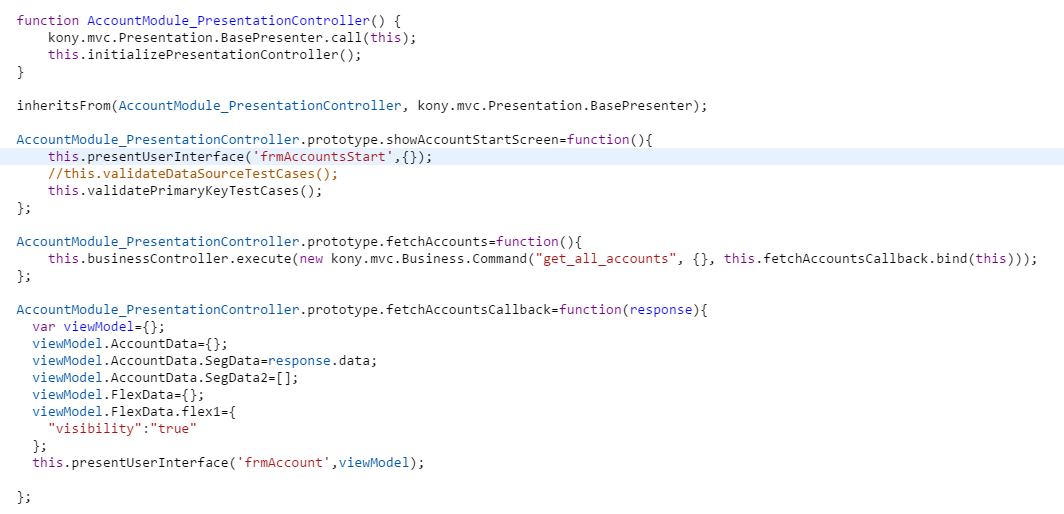
- The
showAccountStartScreenfunction is the entry point for the accounts module. After the authentication process, the auth module shifts to account module, and then callsshowAccountStartScreenwhich is the entry point function of the accounts presentation. This function shows thefrmAccountsStartform. ThefetchAccountsfunction of the presentation controller is called when the user clicks Get. The business call happens, and the response is received at thefetchAccountsCallbackcallback function. After you get the response, construct a view model with the response, and present thefrmAccountform with this view model. - Following is the application flow:
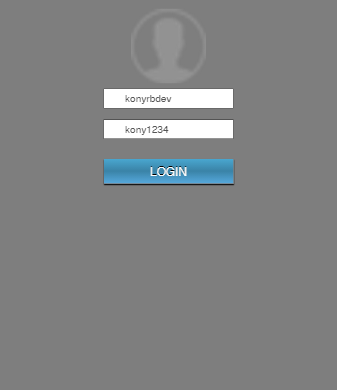
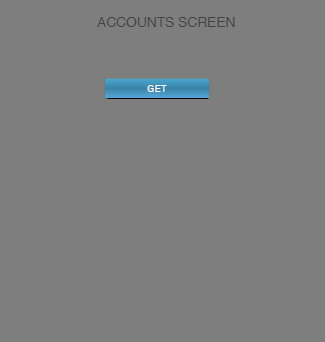
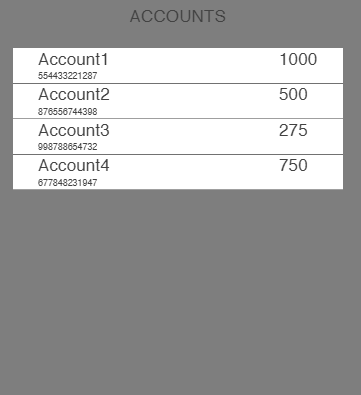
- The
frmLoginis shown first which belongs to the Auth module. After the login process, the Accounts module entry point function is called which shows thefrmAccountStartscreen. Then thefrmAccountsis shown with data. - Now think about the flow. After successful login, what if the user wants the data directly, and show the accounts screen. What if the user does not want the intermediate screen
frmAccountStart,and what if the user wants the third screen directly. This can be done by the presentation controller extensions. - With the presentation extensions, you make use of the presentation layer's power, and show a screen, here a different screen. Make sure you use the same business layer and the model layers. This means that you are changing the behavior of the application by keeping the same business/model layer and modifying the presentation layer to achieve this new extension process.
- First, you must create a new JS file called
AccountModule_PresentationExtn.js, and make an entry in the module config in the presentation extensions array.
- Now, you need to analyze the situation. After the Auth module is done with processes, you call the Accounts module entry point function. This entry point
showAccountStartfunction shows thefrmAccountStartform. But now you override the function in your presentation controller extension that you have defined earlier.
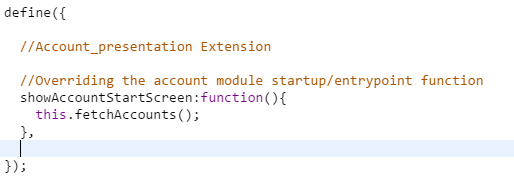
- Override the entry point, and see what you are doing inside this function. First of all, if you want to show the account screen with all the data, you need the data. So, that is the function which you call in the
showAccountStartScreenfunction. Call thefetchAccountsfunction that you made using the base presentation controller. After getting the data, thefetchAccountsCallbackis called and this function shows thefrmAccountform with the accounts data. This way, you modified the entry point of the Account module and then changed the presentation flow, without changing any piece of code of the original code base. - Following is the application flow:
How to modify a form, add new widgets, and hide a widget
- Consider you have the following Accounts form,
frmAccounts:
- Consider this form has a segment called
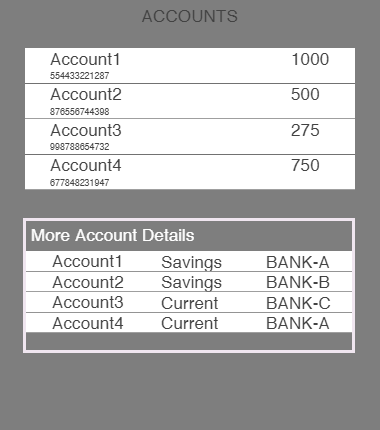
segAccounton top showing the account number and the available balance.There is also a flex at the bottom which has another segment which shows additional details of the accounts. You want to achieve on/off behavior for this flex called flex1. When you are presenting the form, you must mention this context information to the form through the view model. After this, you must appropriately handle the same data in the view controller which is sent from the presentation controller. - Do the following to modify presentation controller:
- Construct the view model with all the necessary data in the presentation controller function,
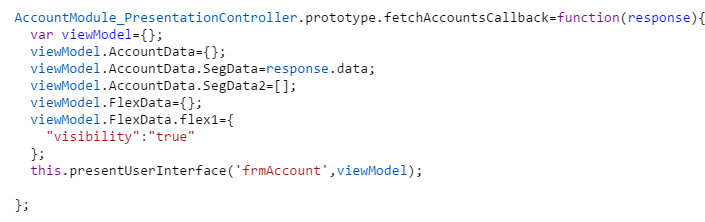
fetchAccountsCallback. The code is as follows:
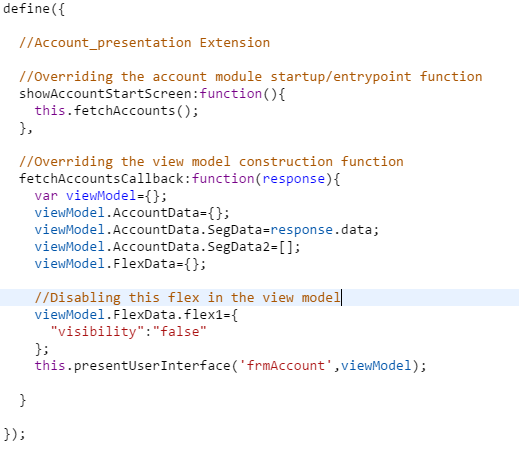
- This view model has flex1 context information and there is a property assigned to this saying true. It means, the presentation controller is telling the view controller to show this flex. But, what if the user wants to disable this flex? Write a new function in the presentation extension and override this function, and give a new viewModel now.

- You have now changed the view model object that you are passing from the presentation layer into the view layer. See how this is handled in the view layer.
- Construct the view model with all the necessary data in the presentation controller function,
- See how this new data is handled in the view level. There are two ways to do this:
- First: You can handle this using a form config and UIBinder.
- The view model that you are sending from the presentation is in the format of how the UIBinder needs the viewModel as input. Therefore, instruct the form config to tell the view to map data with widgets according to the entries made.
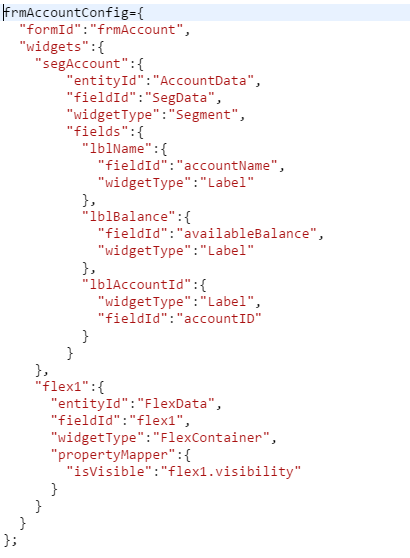
- Following is the form config:

- In the form config, you are allowing the
segAccountswidget to populate the data that you are sending. You also have a widget entry forflex1and according to the kind of view model sent, you can change those widget properties. Based on the property values the presentation sends to the widgets, the view can be changed by having formConfig. Having configurations in the form config tells the UIBinder to do the operations accordingly.
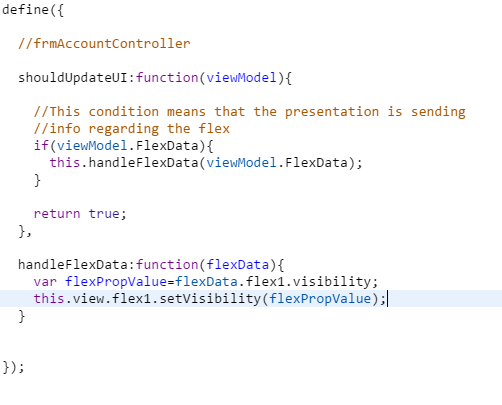
- Second: This can also be handled in the view level in the
shouldUpdateUIfunction. In theshouldUpdateUIfuncton, check for the appropriateviewModelcontext, and then write your function of enabling or disabling in that function.- See how the view controller handles it.

- Check if appropriate data is sent to the view controller or not. You need the
FlexData. Once you get it, change the property of the view object, as inhandleFlexDatafunction.
- See how the view controller handles it.
- This way, when you add new widgets, you handle them by adding the entry for that widget in the form config and let the UIBinder handle it. If not this way, you can let the form controller handle the new context in the
shouldUpdateUIlifecycle method and handle the context information in the conditionals and do the necessary operation. - If the function related to that view rendering logic is already present, and you need to modify this function, what do you do? You can have a view controller extension, override the existing function, and implement your new function in the extension.
- First: You can handle this using a form config and UIBinder.
How to extend a presentation and business using SUPER class methods
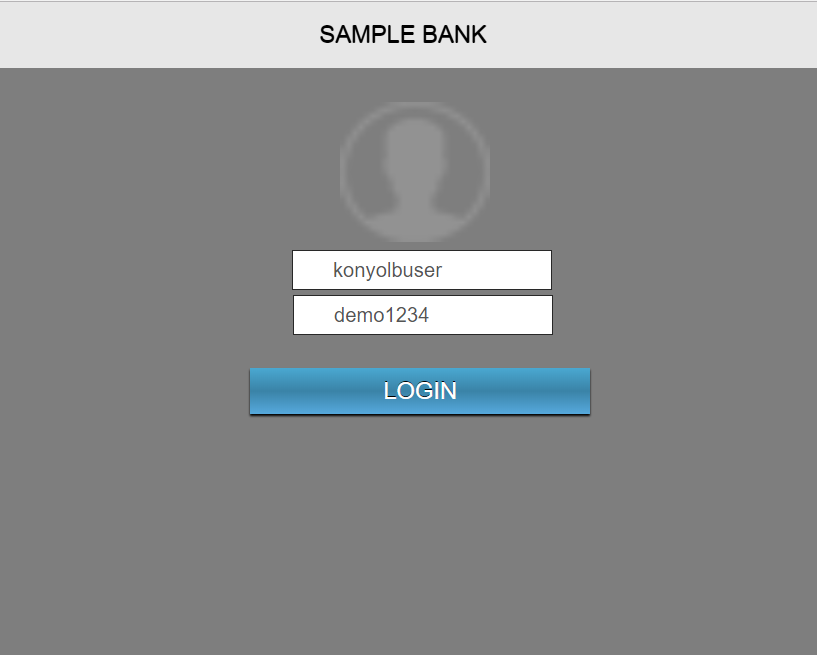
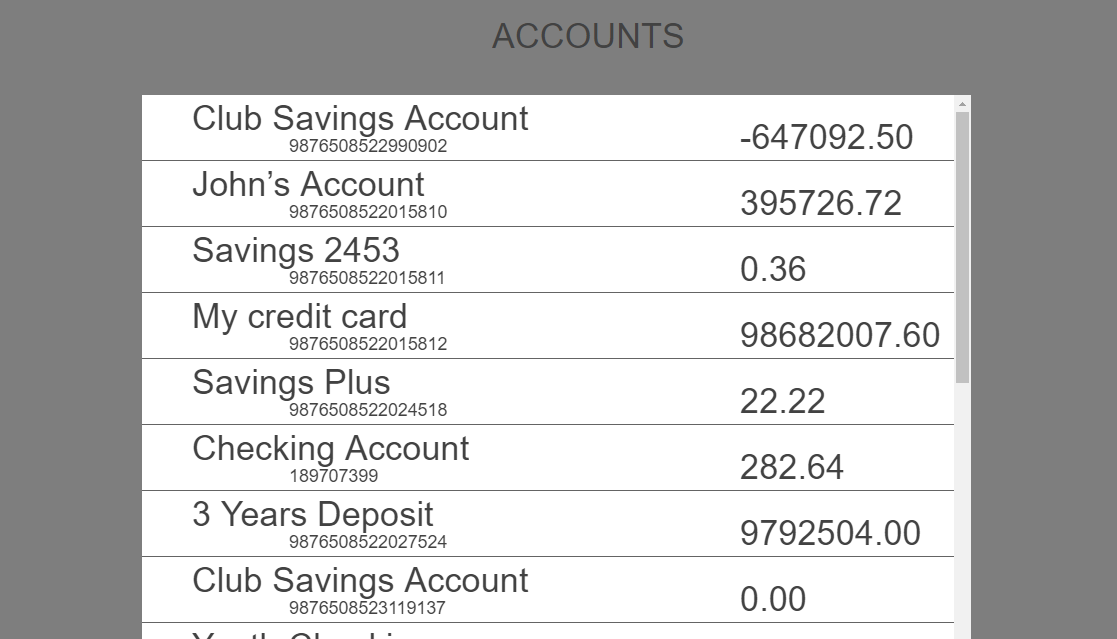
- Let's look at the following application flow. We log in to our application, and then accounts are populated. When an account are selected, the transactions of that account are displayed.


- Let's customize this application in such a way that, after login, we see a screen to select the accounts, and then populate all account details of that account holder. In the same screen, let's have a button which shows the transaction details of the account holder.
- This customization helps us understand how to make use of the existing business logic, modify the business, add a new view, and introduce a new business as part of customization.
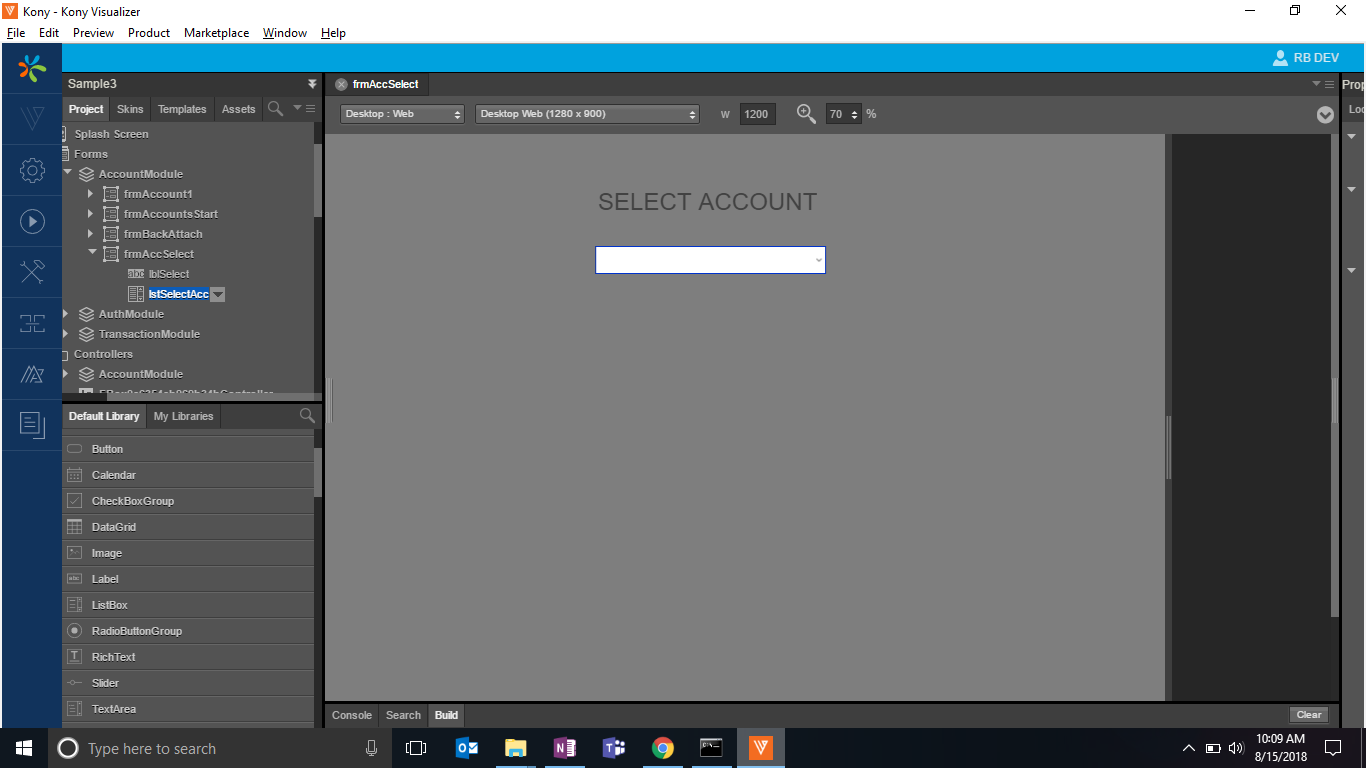
- First, let's design a screen to which we will navigate to, after the login.
- Following is our new screen. We are going to populate the account data in this list box.

- In our original flow, after authentication, we are doing a fetch accounts business call, and showing this data in frmAccounts screen. But now we have to use the same business logic, change the presentation logic, and send only the account name and the
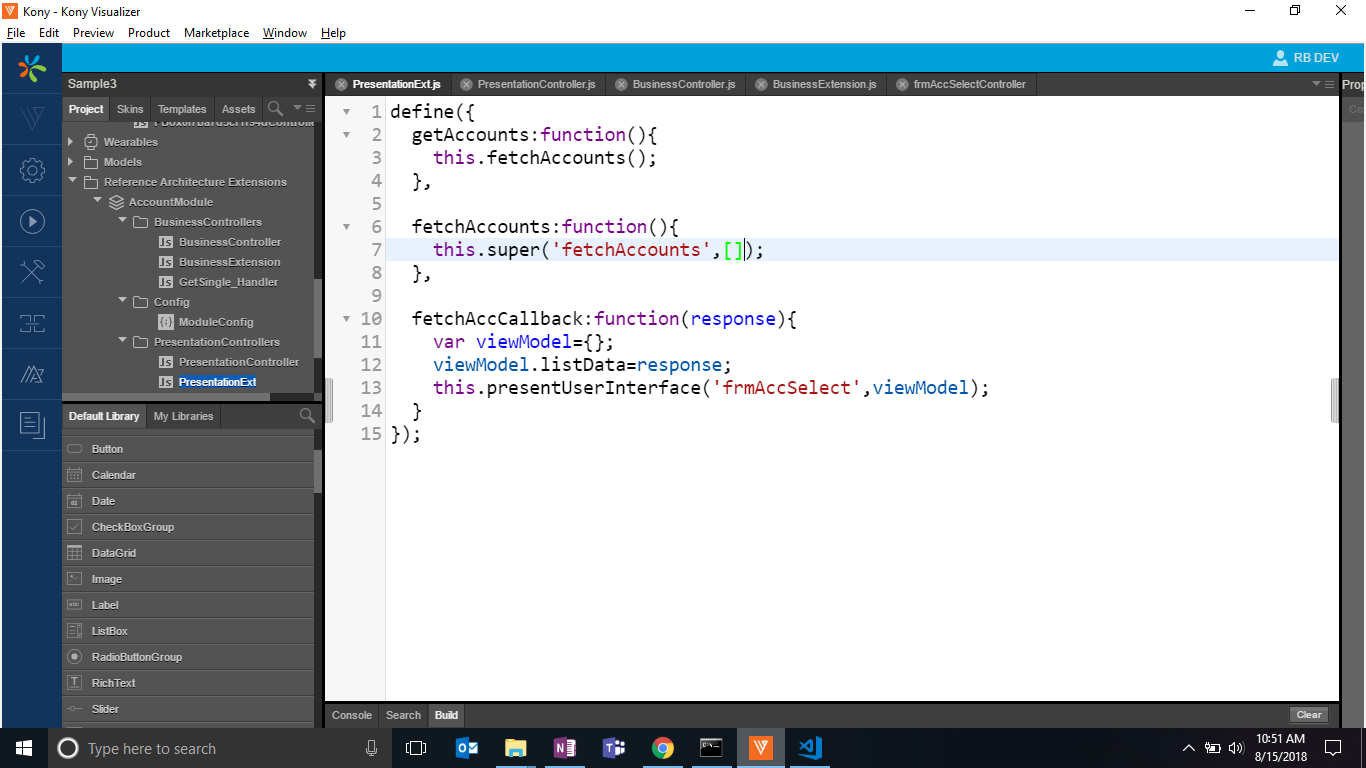
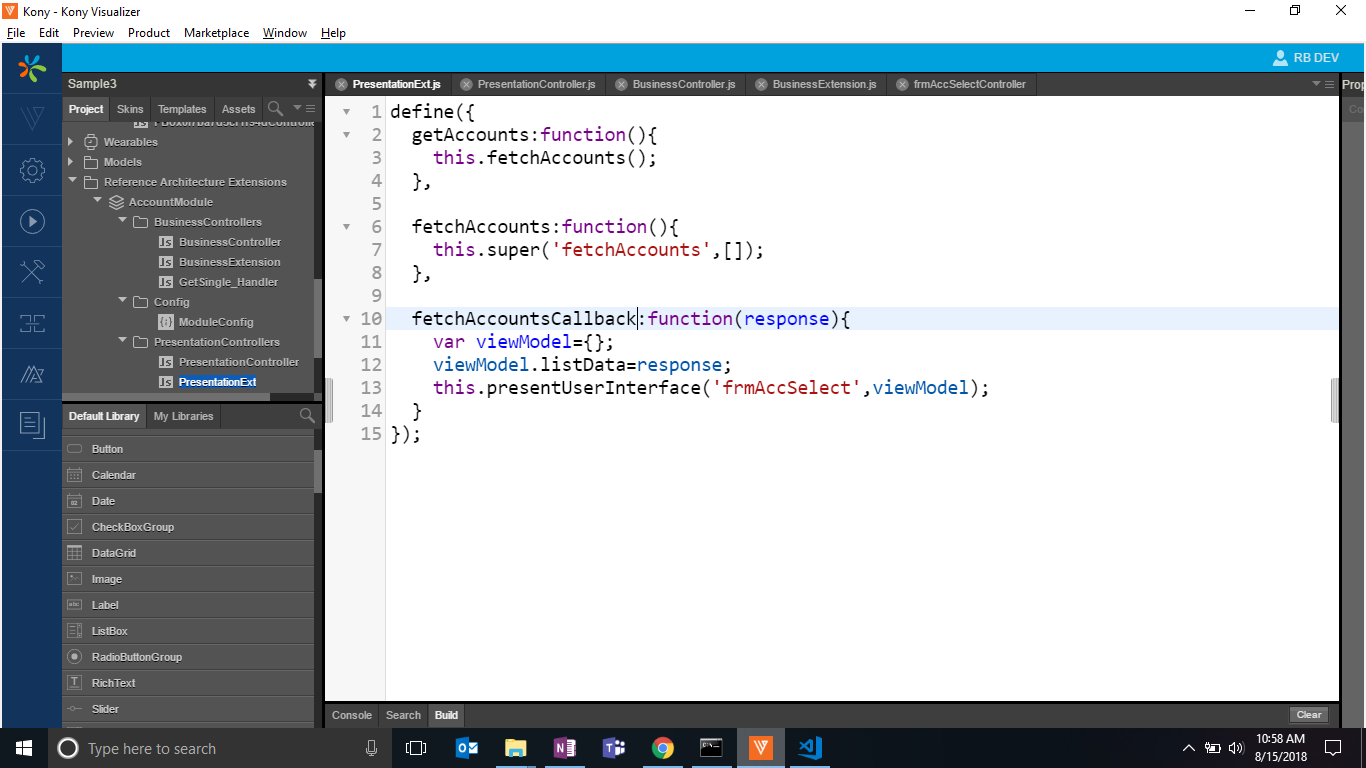
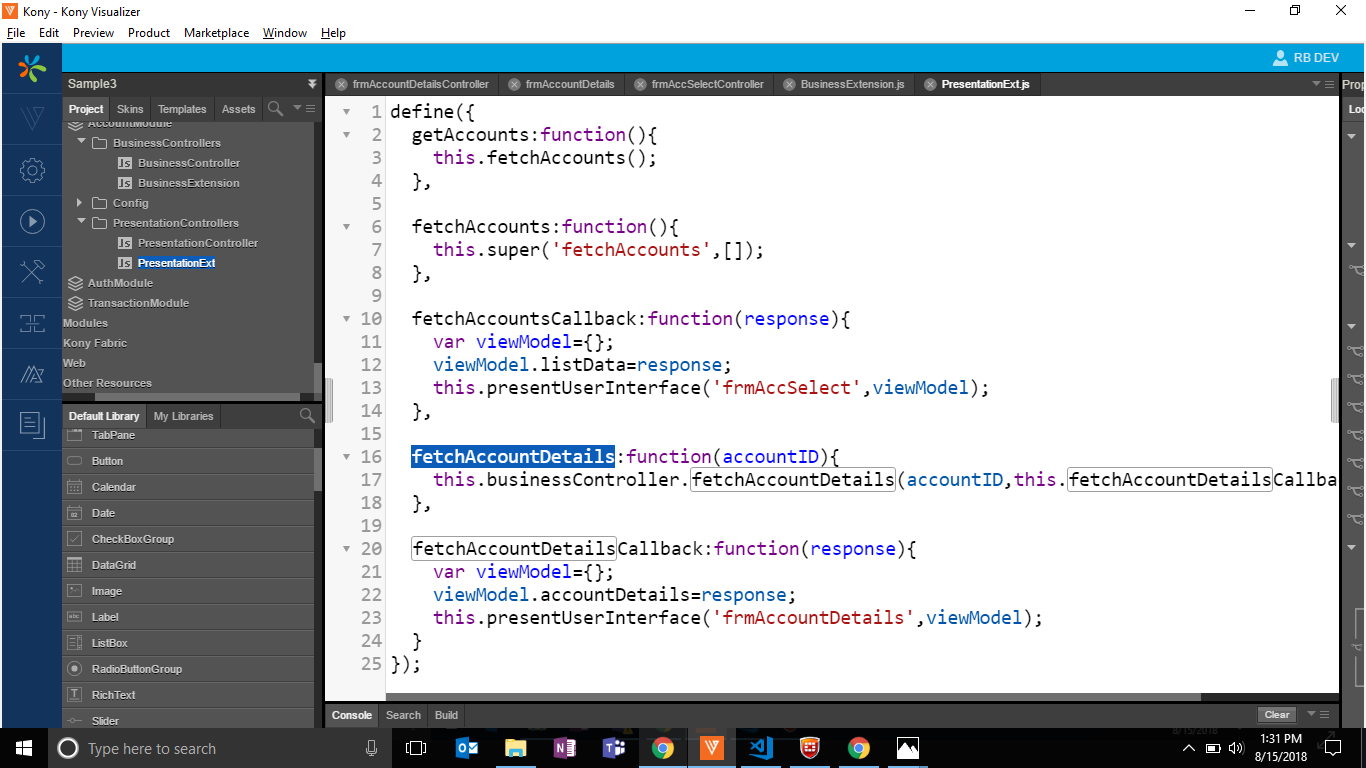
accountIDto the view, and populate them in the list box. - The code in the presentation extension is as follows:

- Here we are making use of base presentation class fetchAccouts method which gets all the accounts, and the response is sent to the screen frmAccont form. With this, we have extended our presentation layer.
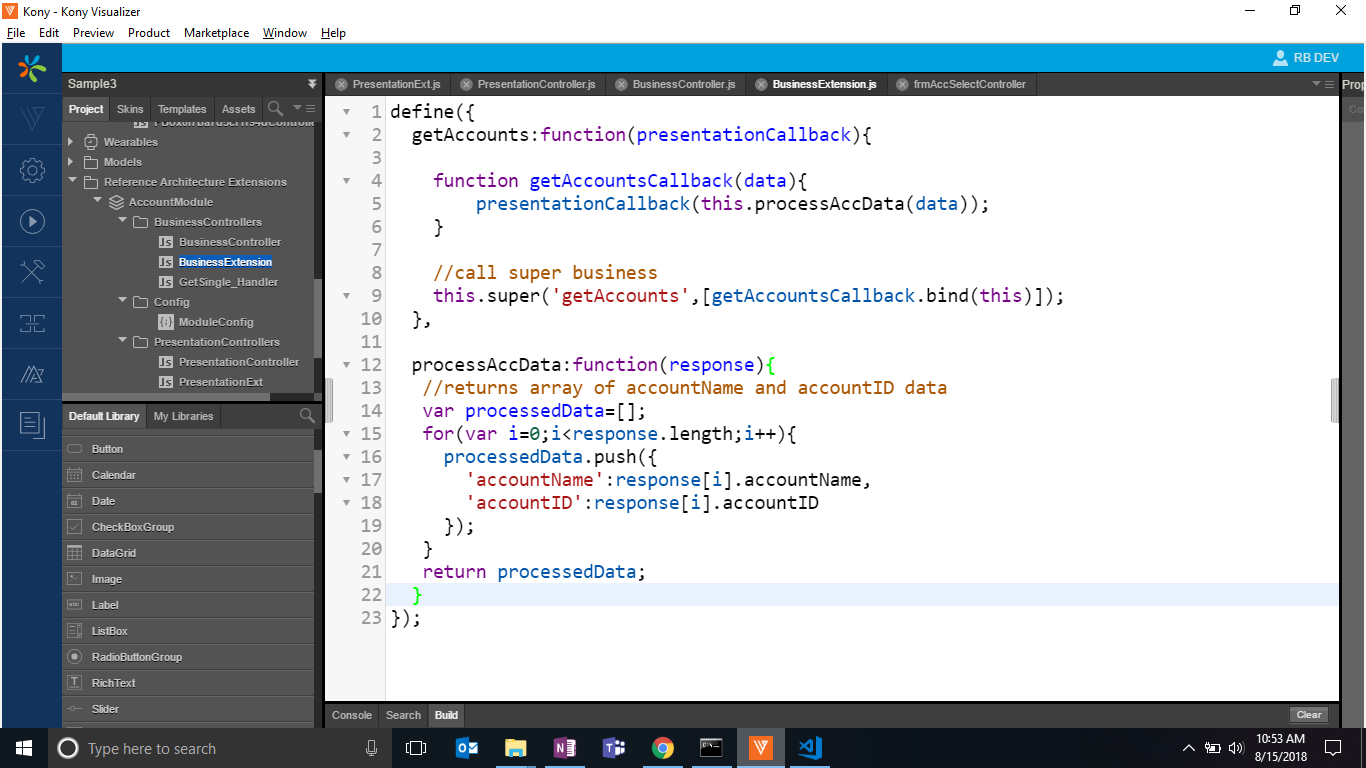
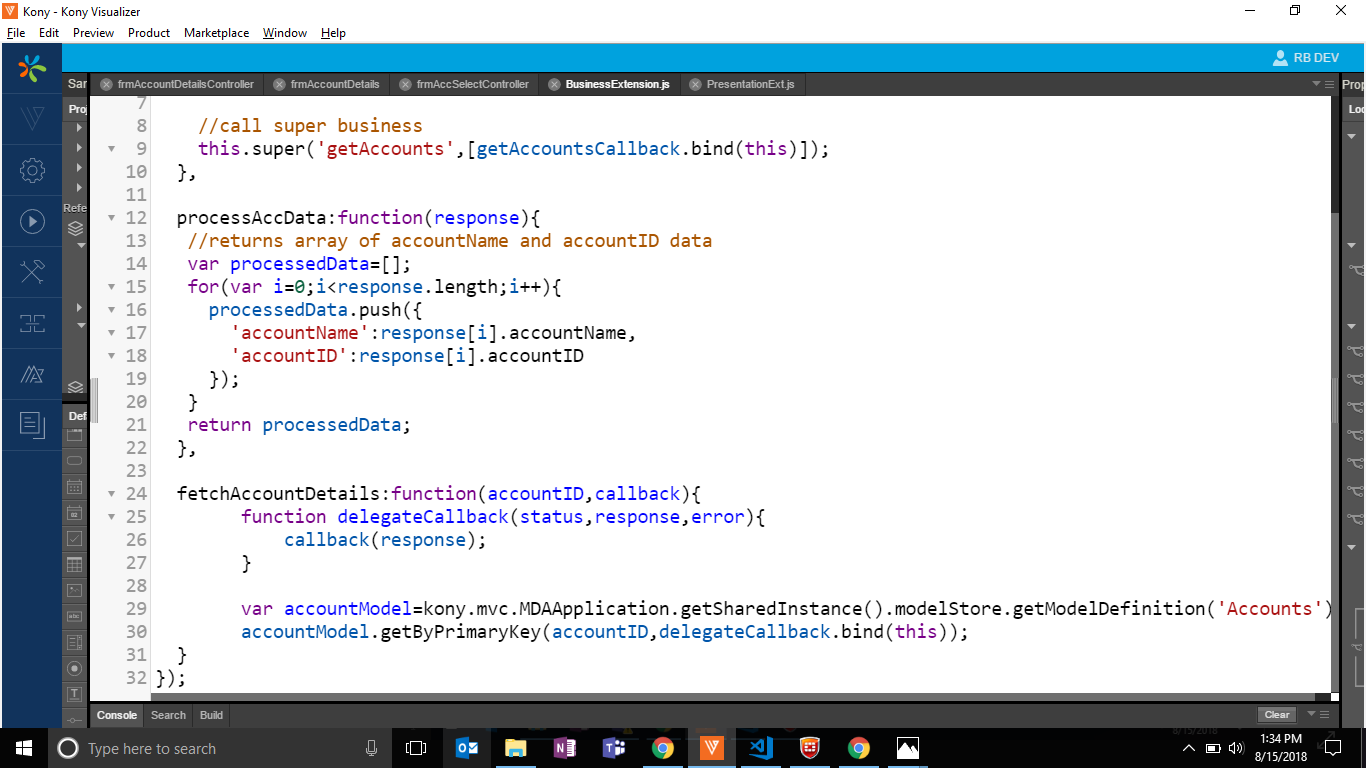
- Let's extend our business layer, and modify fetch accounts business logic in such a way that we only fetch accounts data, and then return only accountID, and accountName. Let us do a filter of data here, and only send necessary data to the presentation layer.
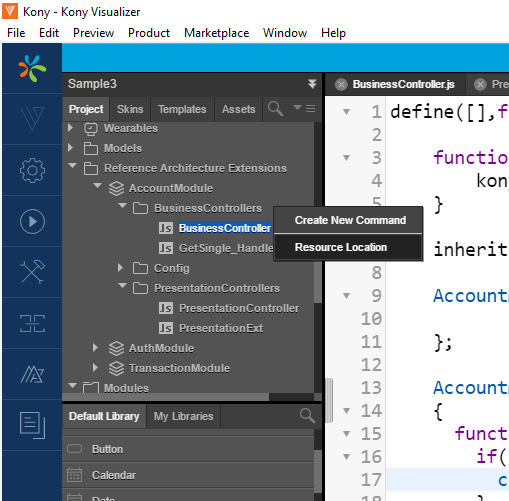
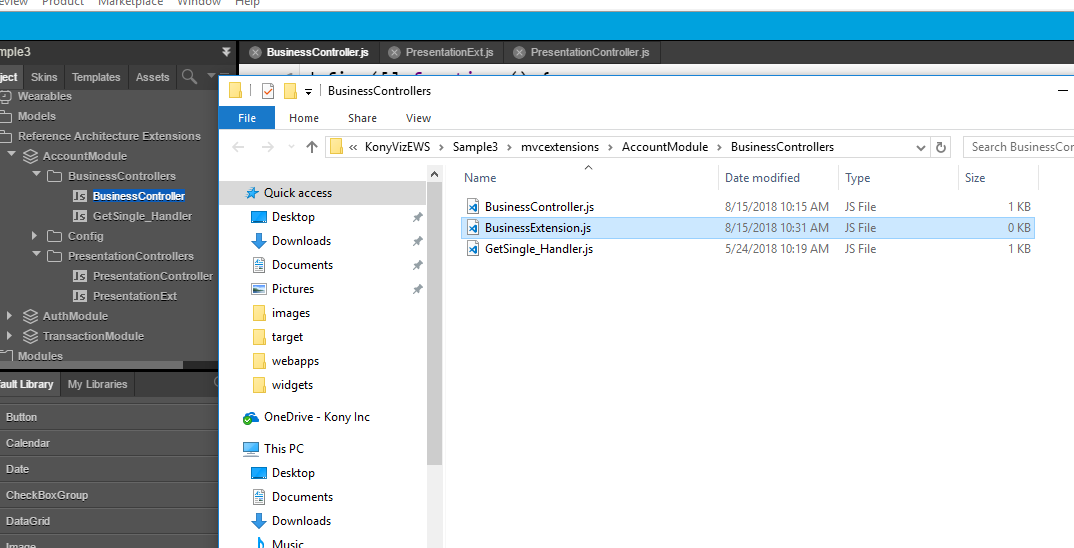
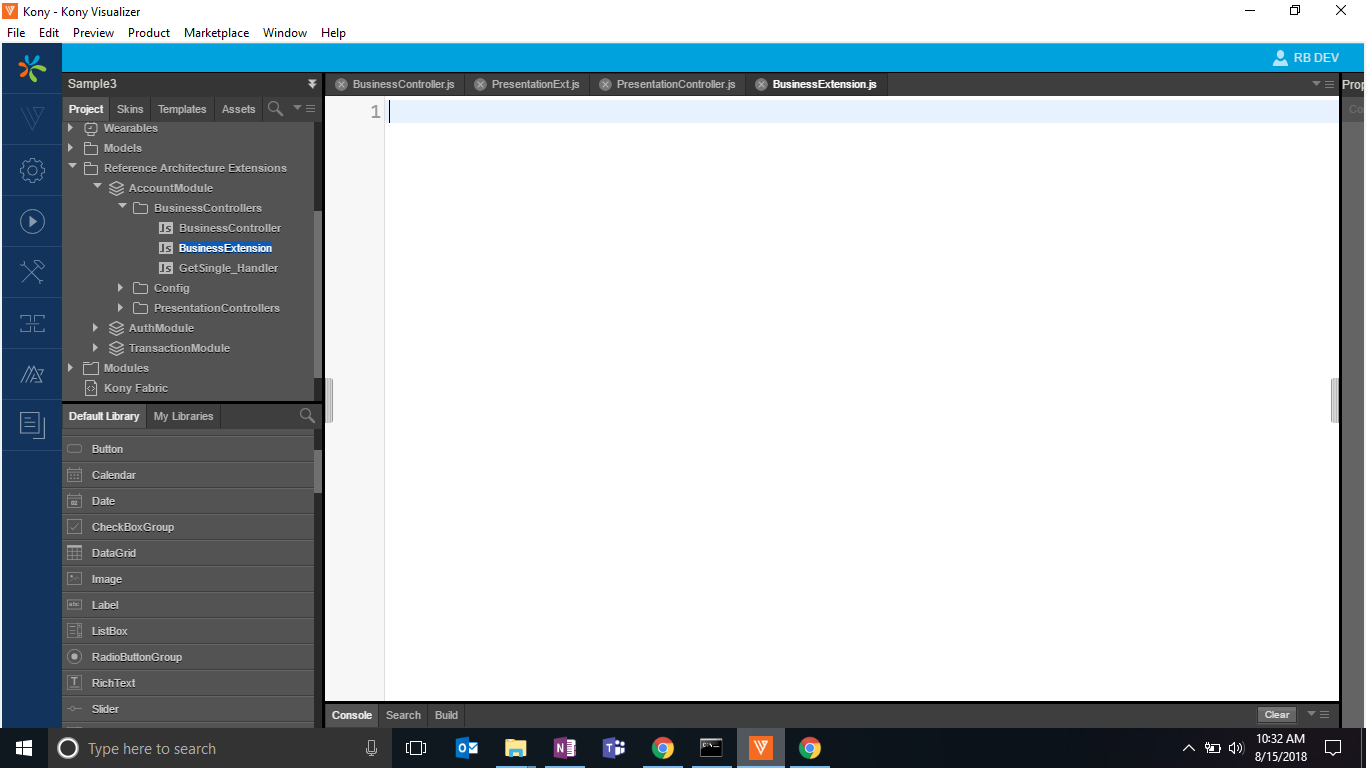
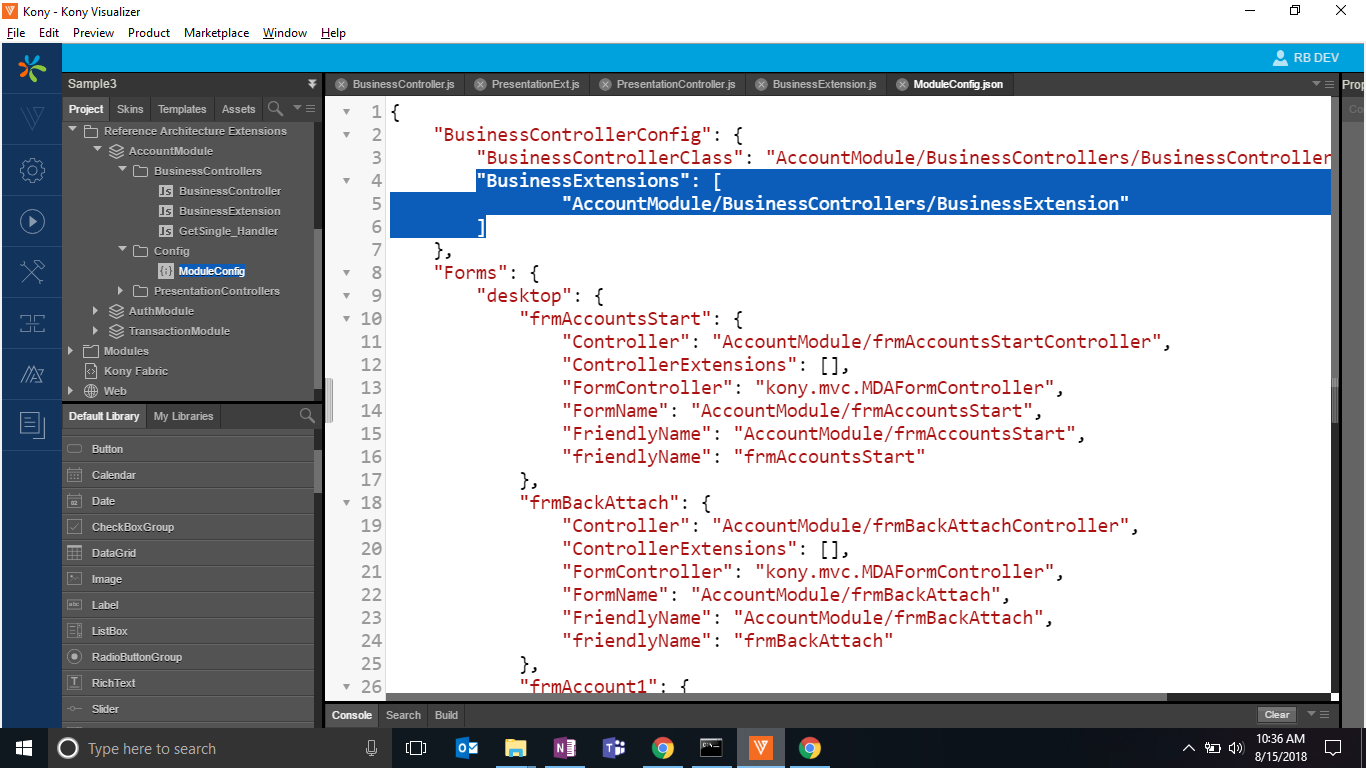
- As there is no tooling support for creating a business extension, we create this file manually. For this, we go to the resource location of our businessControllers folder. Then we create a new file and rename it to business extension and then refresh the project. We also make sure that we give this file an entry in the module config.


- Then we write the define syntax in our business extension file and then start defining/overriding our business functions.

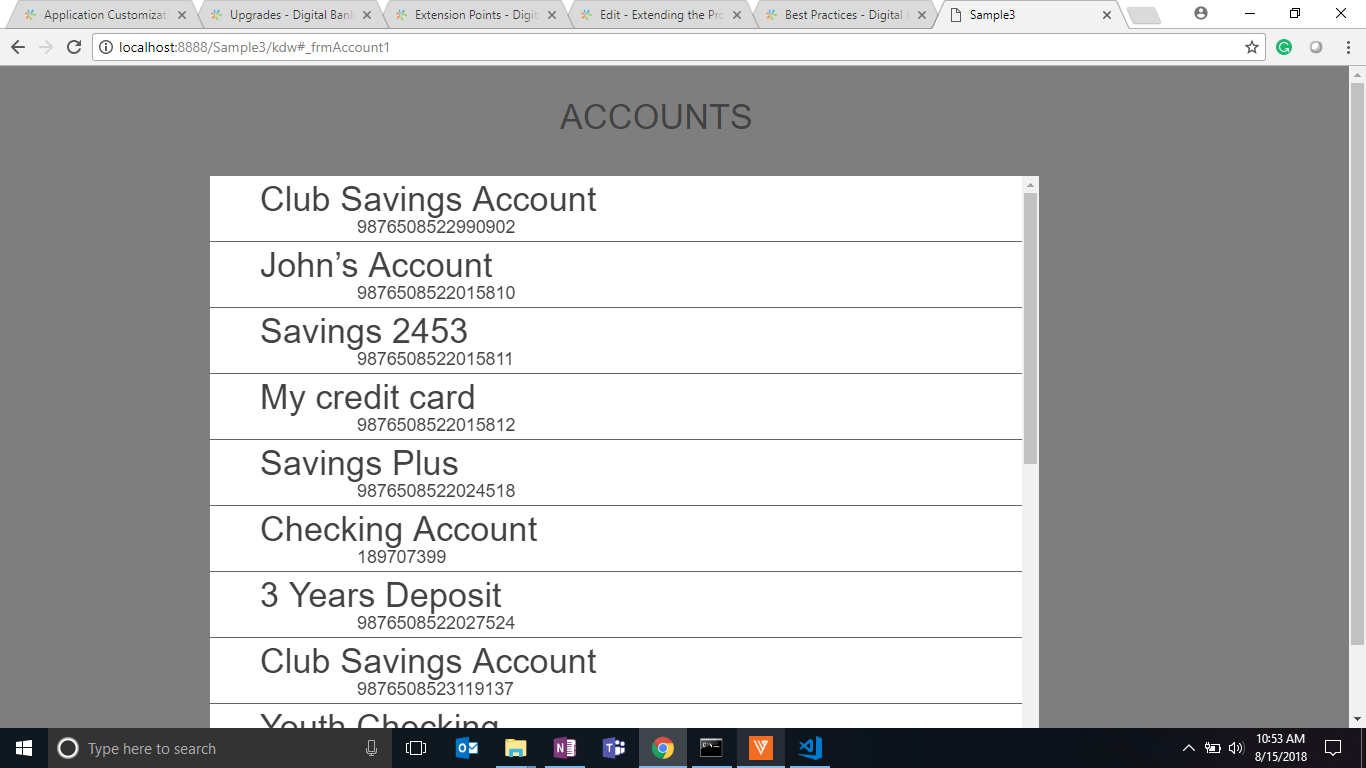
- When we run the app, we can see the following output.

- We can see that our super implementation of business layer, and presentation layer both have worked. Our business layer super method worked because the business is only sending two properties of data, which is account id and name. And the presentation extension super method worked because we are still in the second screen rather than our new frmAccSelect screen.
- Let's change the presentation extension to navigate to the frmAccSelect. For that, we need to rewrite the complete implementation because the callback scope that we are passing is different or we can overwrite the callback itself.

- Here we are calling our super method, and then we are overriding the callback method, which super.fetchAccounts method uses. Now it is our callback method which is going to be executed, and we can now navigate to the new screen.
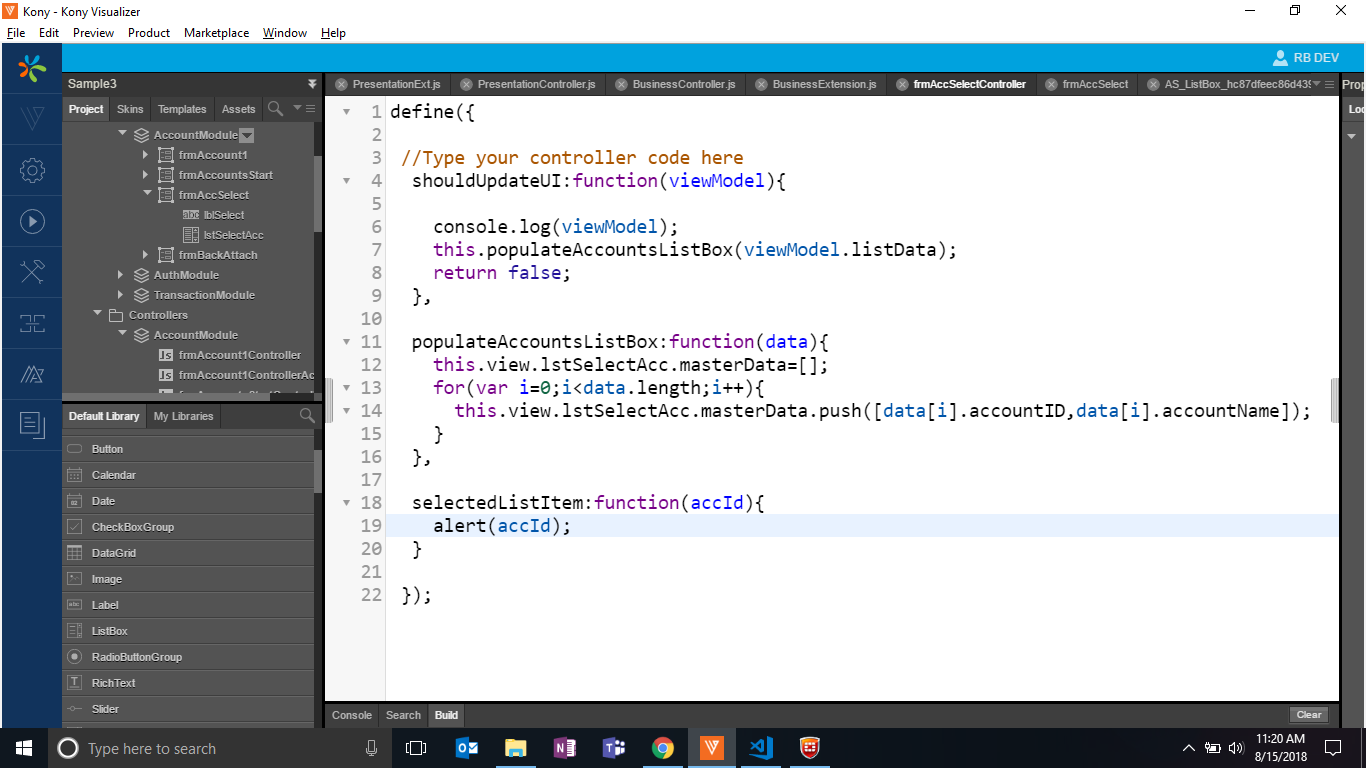
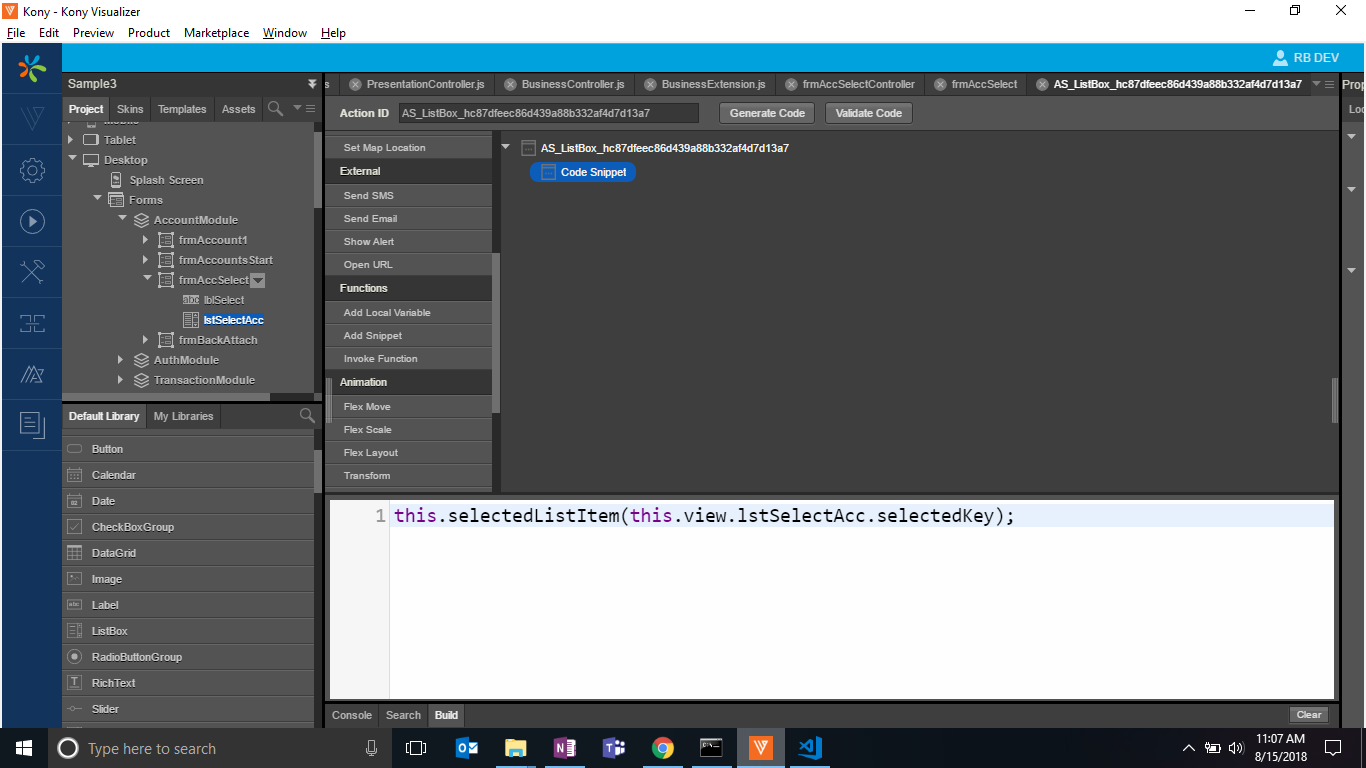
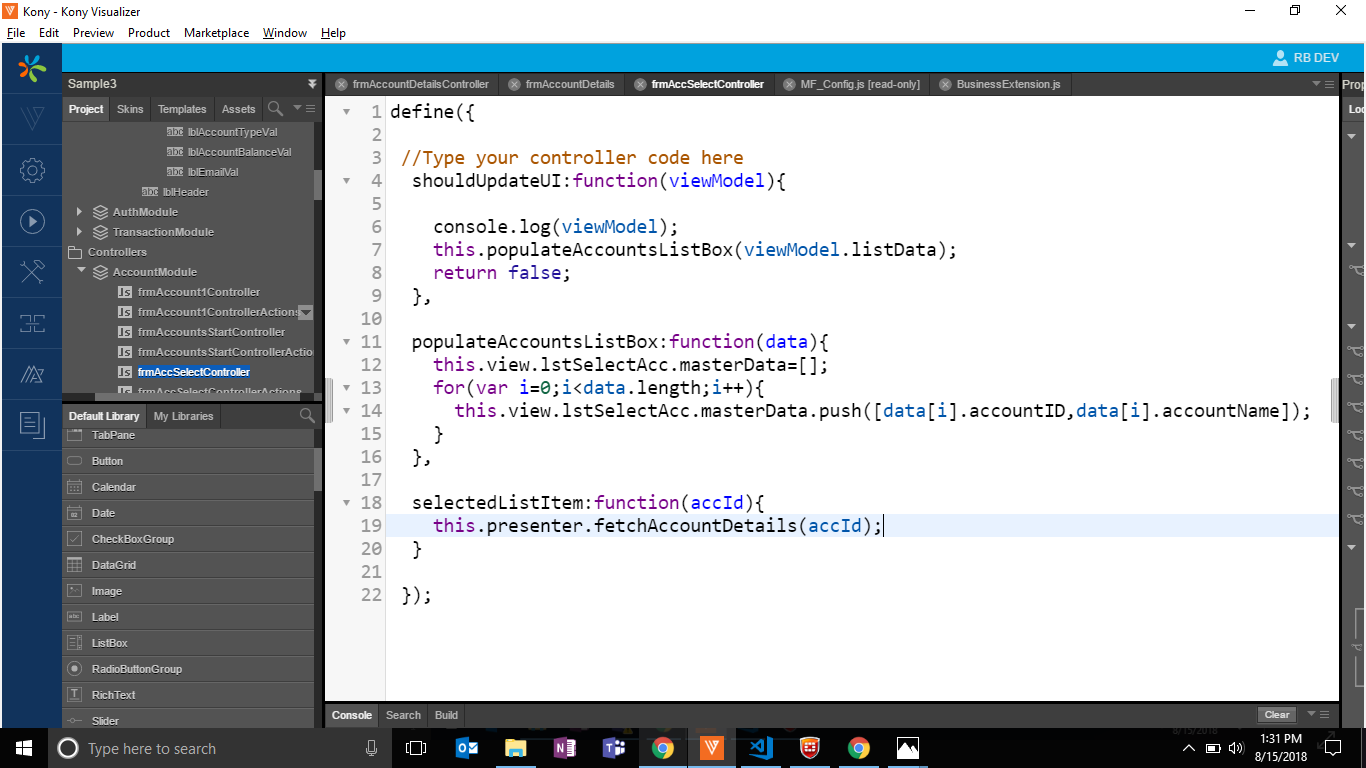
- We then write our bind logic in the view controller, and it is as follows. We also define an event for our list box, and then we will use this event to call the presentation, and pass the id to the presentation layer for it to call the business according to the id.


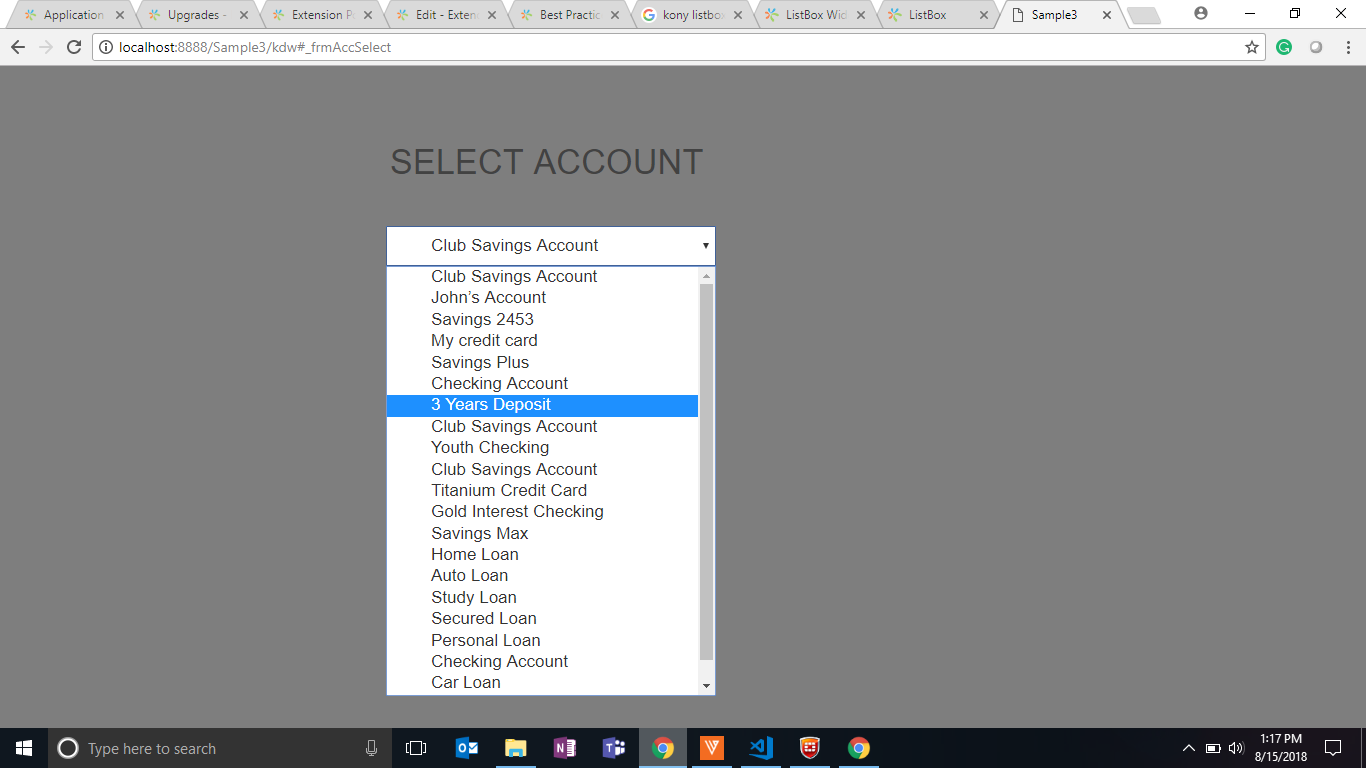
- After doing this, we can find that the list box gets populated.

- Once we select any account, currently we are just alerting the selected key
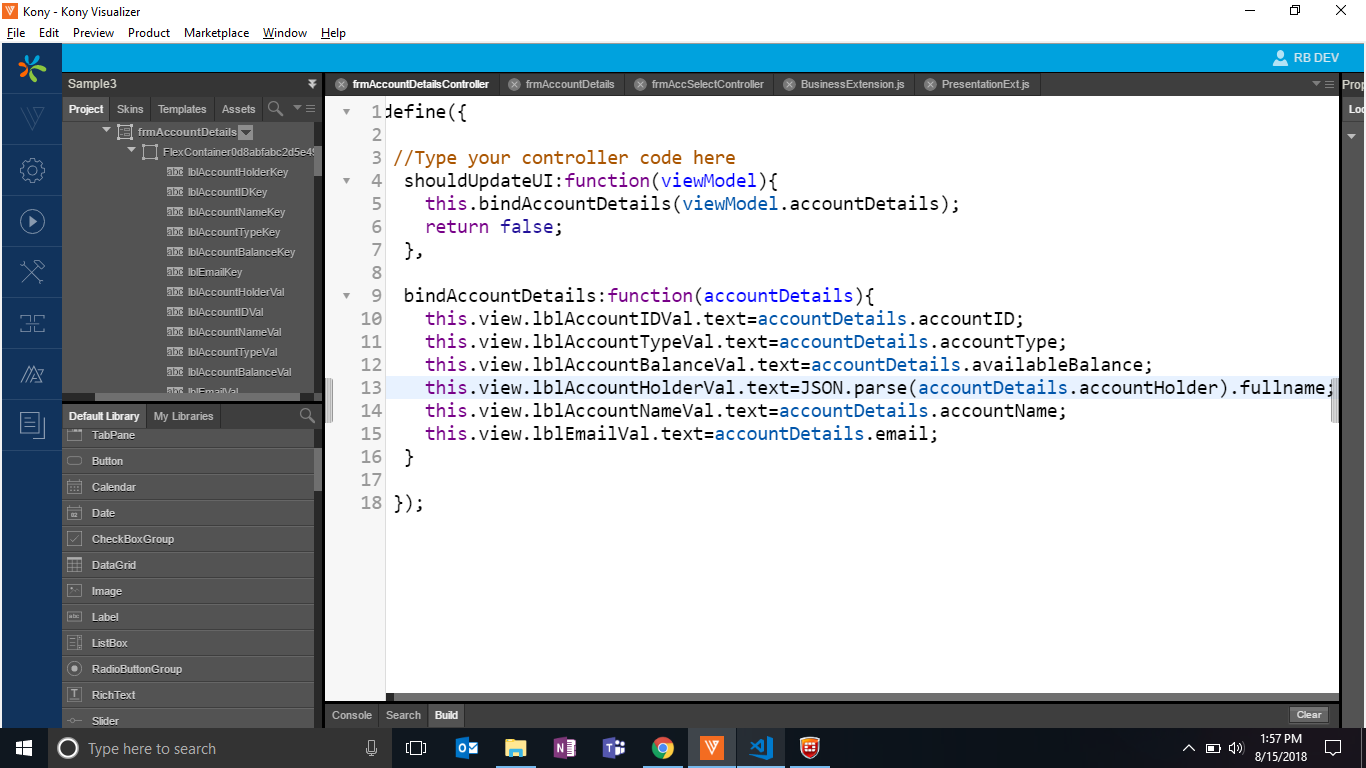
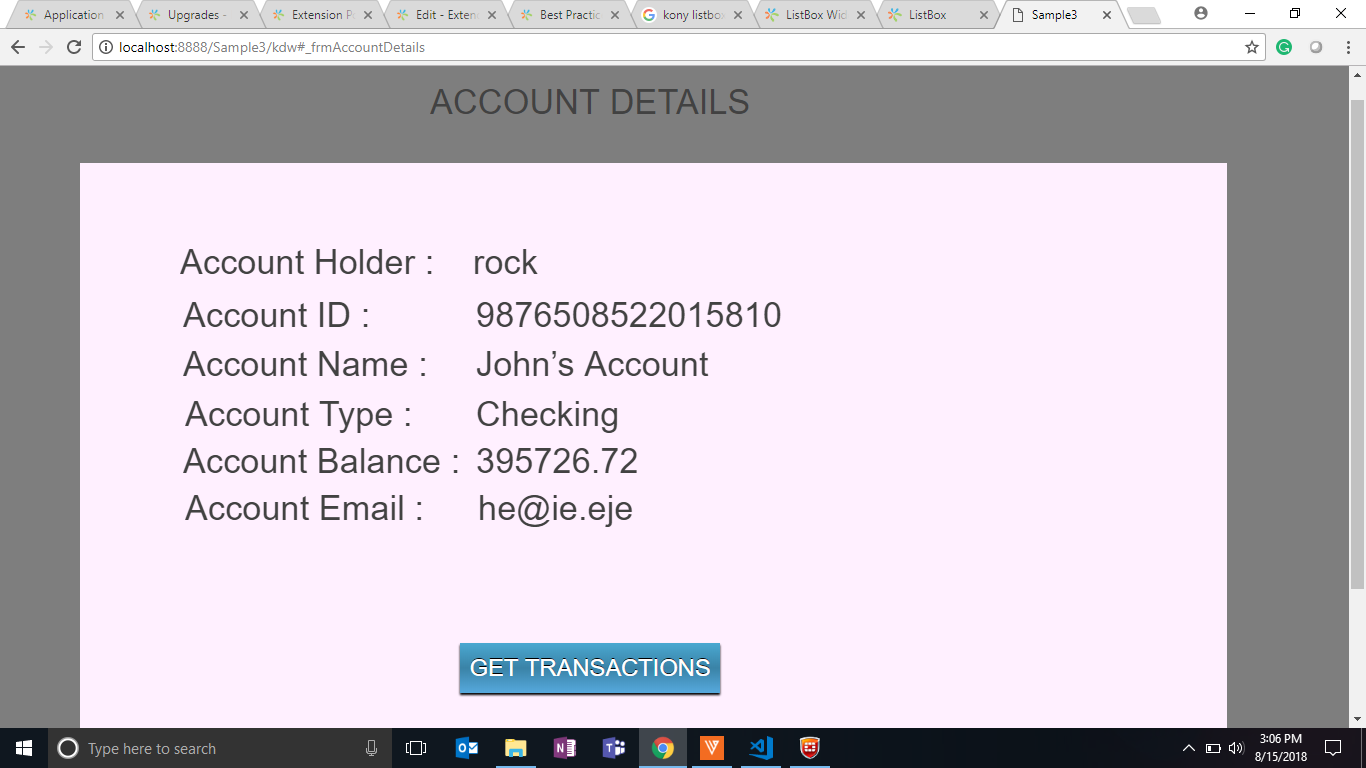
accountID, but we will convert the selected item onclick to call a new business that we have defined in the business extension. Here we will implement the business logic of getting a single account detail and then we will populate the new formfrmAccountDetailswith the data that we have received.
- Here we are calling the presentation method 'fetchAccountDetails' which will fetch all accounts with an
accountID.
- From the presentation controller, we are calling the business method which fetches the account details with an
accountID.
- We are calling the model layer based on a primary key, and we are passing the
accountID. Once we get the data, we are passing this response back to the presentation layer, and then back to view.
- This way we can make use of the presentation, business extensions, and customize the application. Now let us see how to attach the existing transactions screen to this flow.
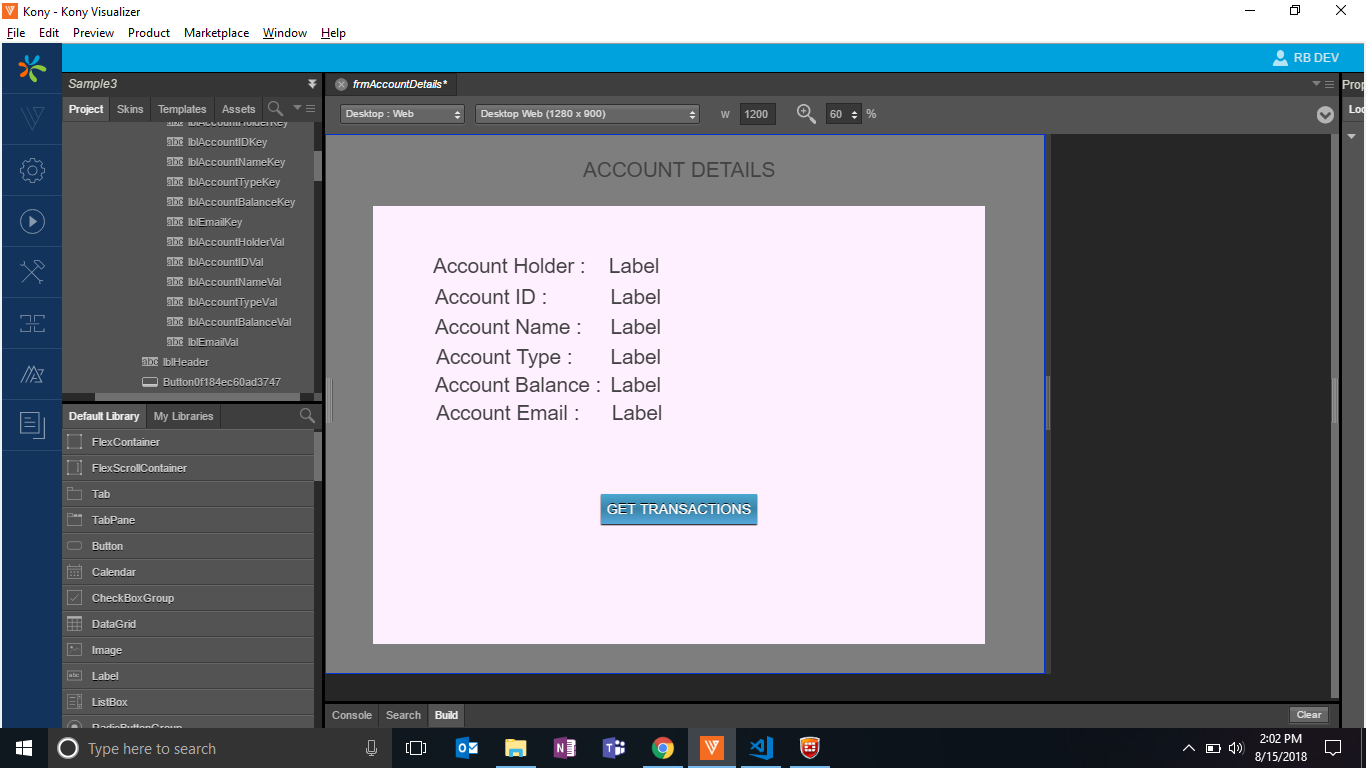
- Let us add a new button 'GET TRANSACTIONS' in the
frmAccountDetailsto attach to the transactions module, and then the existing logic should work fine.
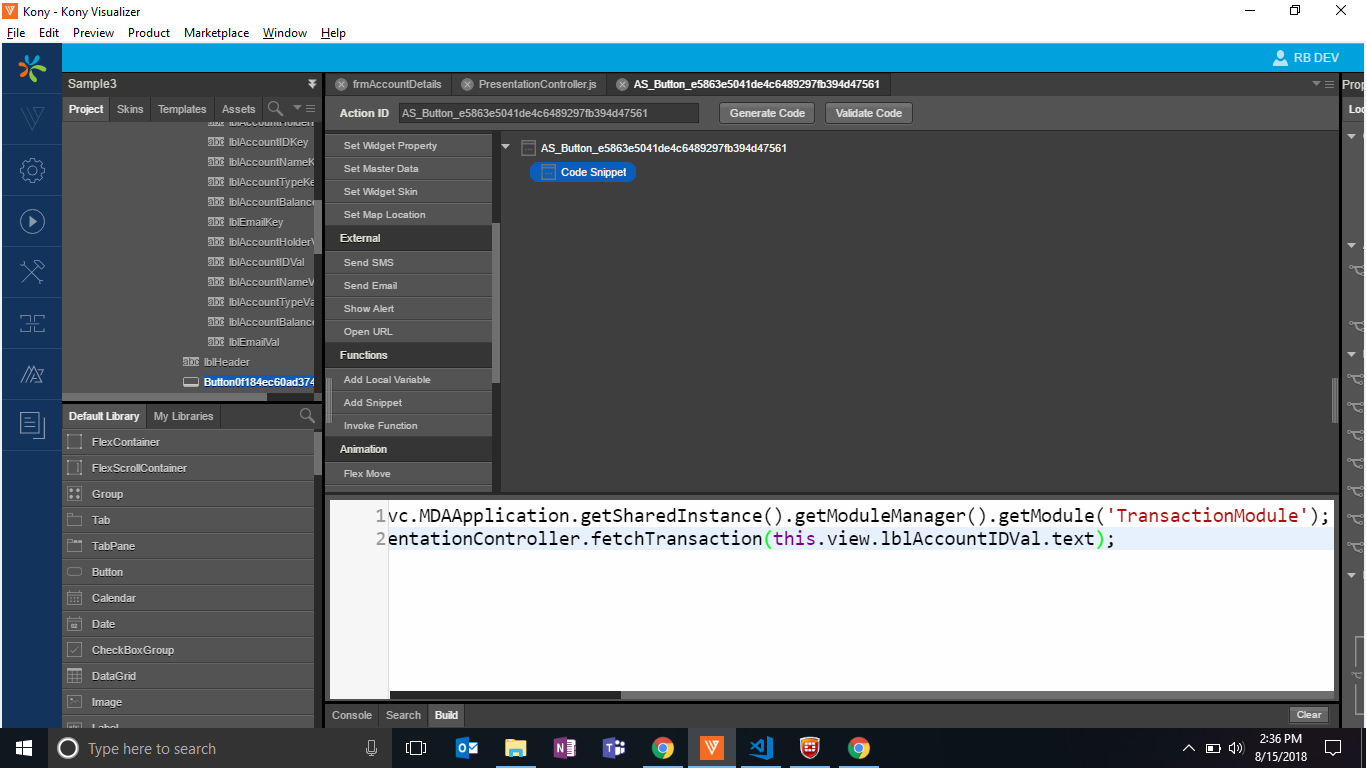
- Now the OnClick of the 'GET TRANSACTIONS' button, let us call the transaction modules presentation method which is used to load the transactions details.

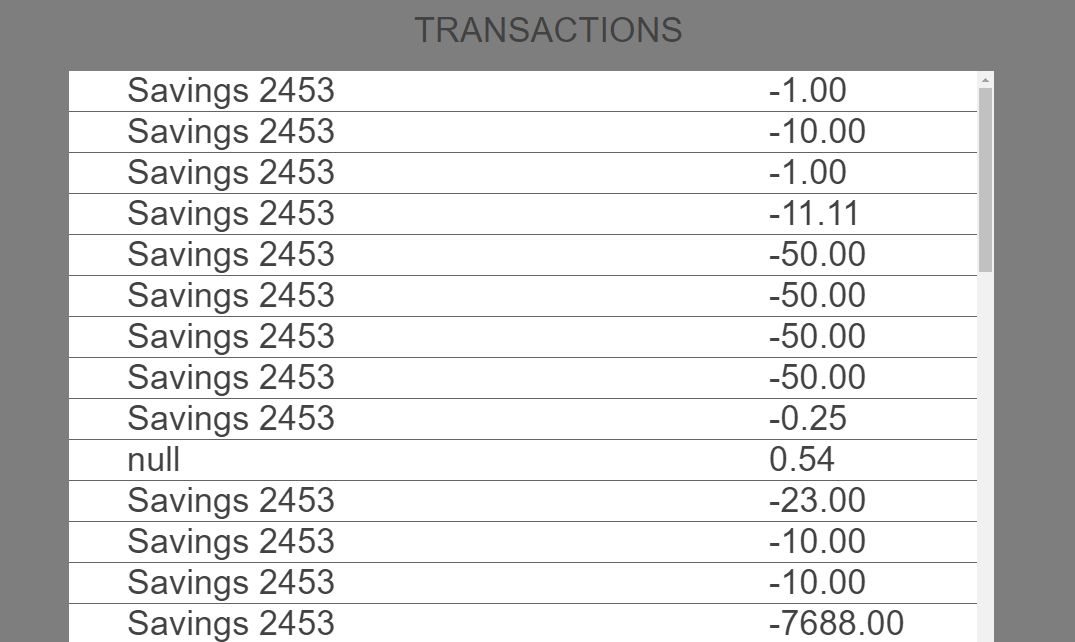
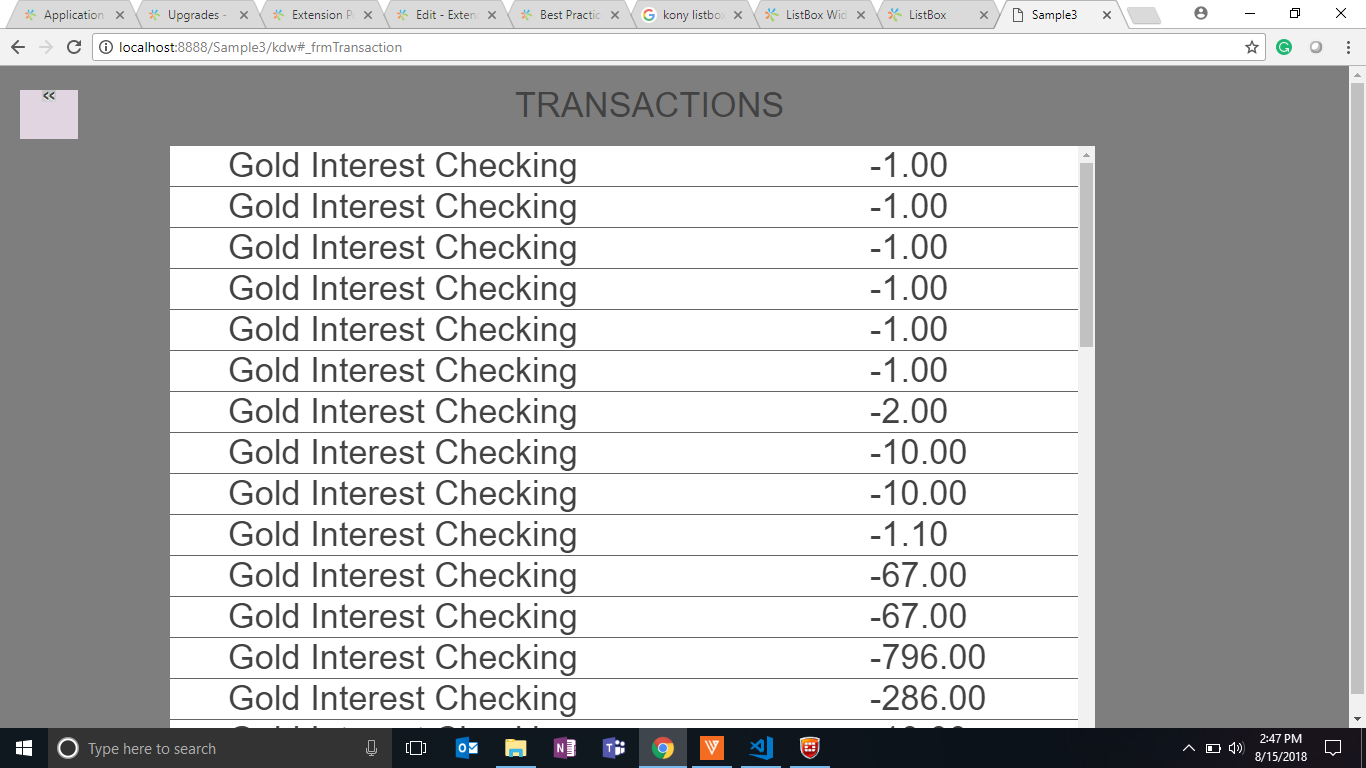
- On click of the 'GET TRANSACTIONS' button, shows the frmTransactions form like the following screen.

- Now, we have achieved the flow using the presentation extensions and the business extensions. Let's take a look at what we have done.
- Base APP:
- Customized APP (using extensions):

How to extend business controller as a pre/post implementation
- Let's take the customized application used earlier, and have a customization over it such that we process the business response, and display them on the screen. For this to be possible, we make a business extension at the place where we get the response, then sort it, processes it accordingly, give it to the presentation, and this data gets populated onto view.
- For now, we will be displaying the data in a chronological order or reverse chronological order, and set it to the screen. To achieve this we can sort this data either in the business layer or the presentation layer. For now, let's do this sorting logic in the business layer.
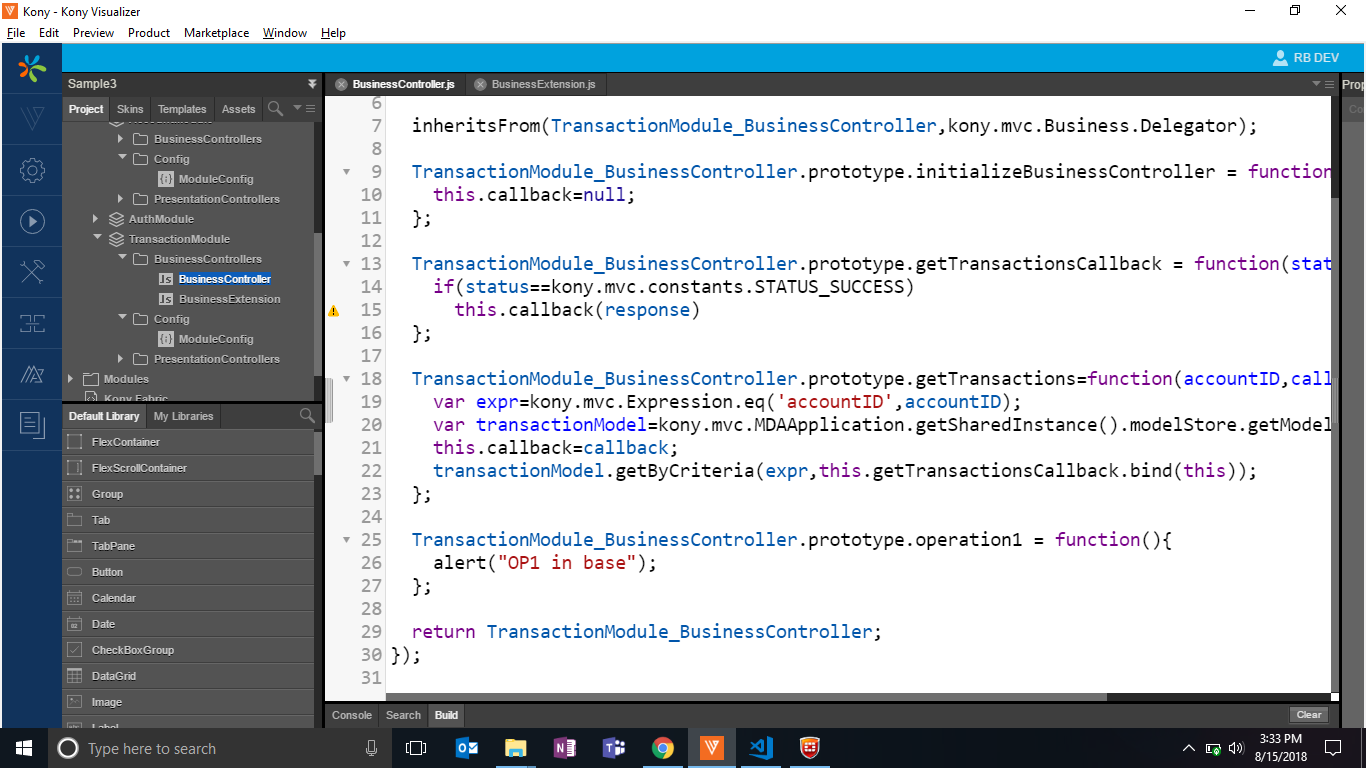
- Following is the business layer at the transactions module:

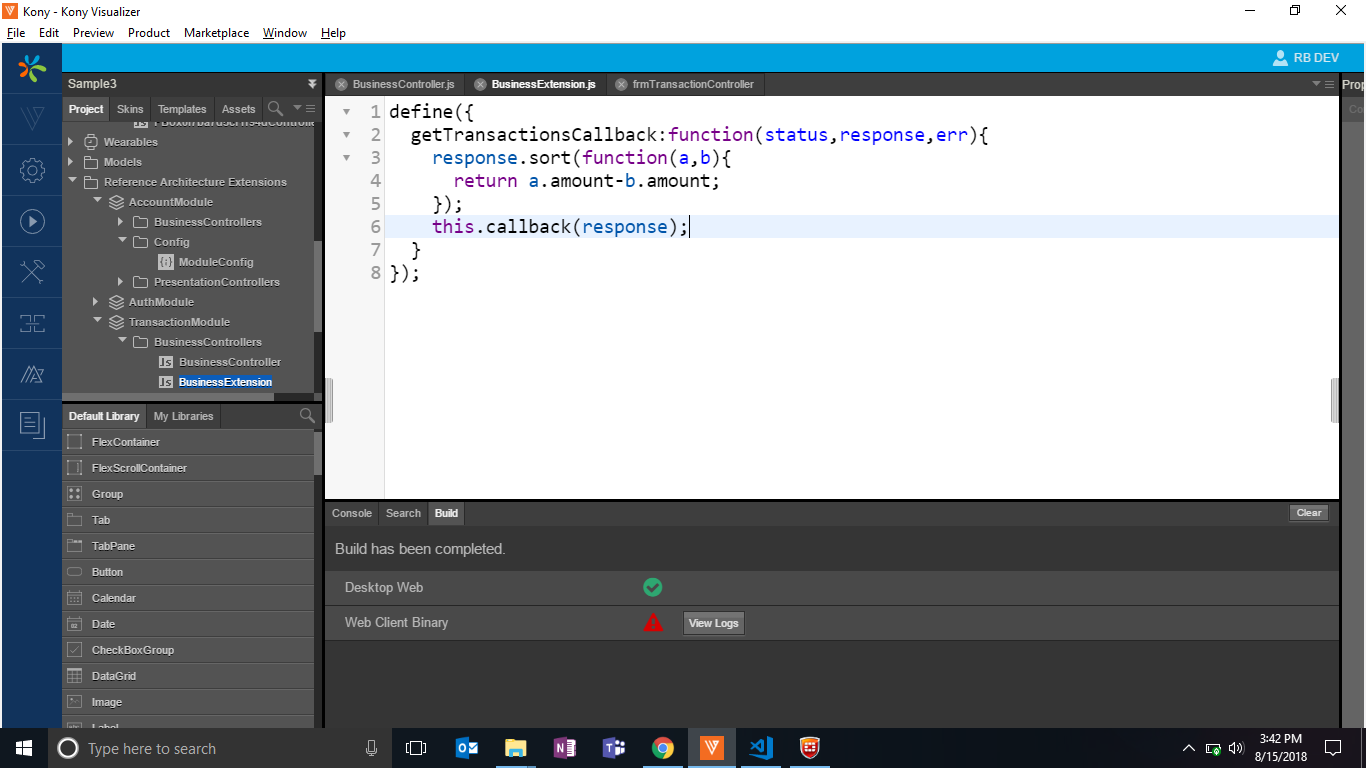
- To process the data, and sort it, we will override the function
getTransactionsCallbackin the business extension. - We will write the sort logic for that array in the extension, and the existing logic should do the trick.

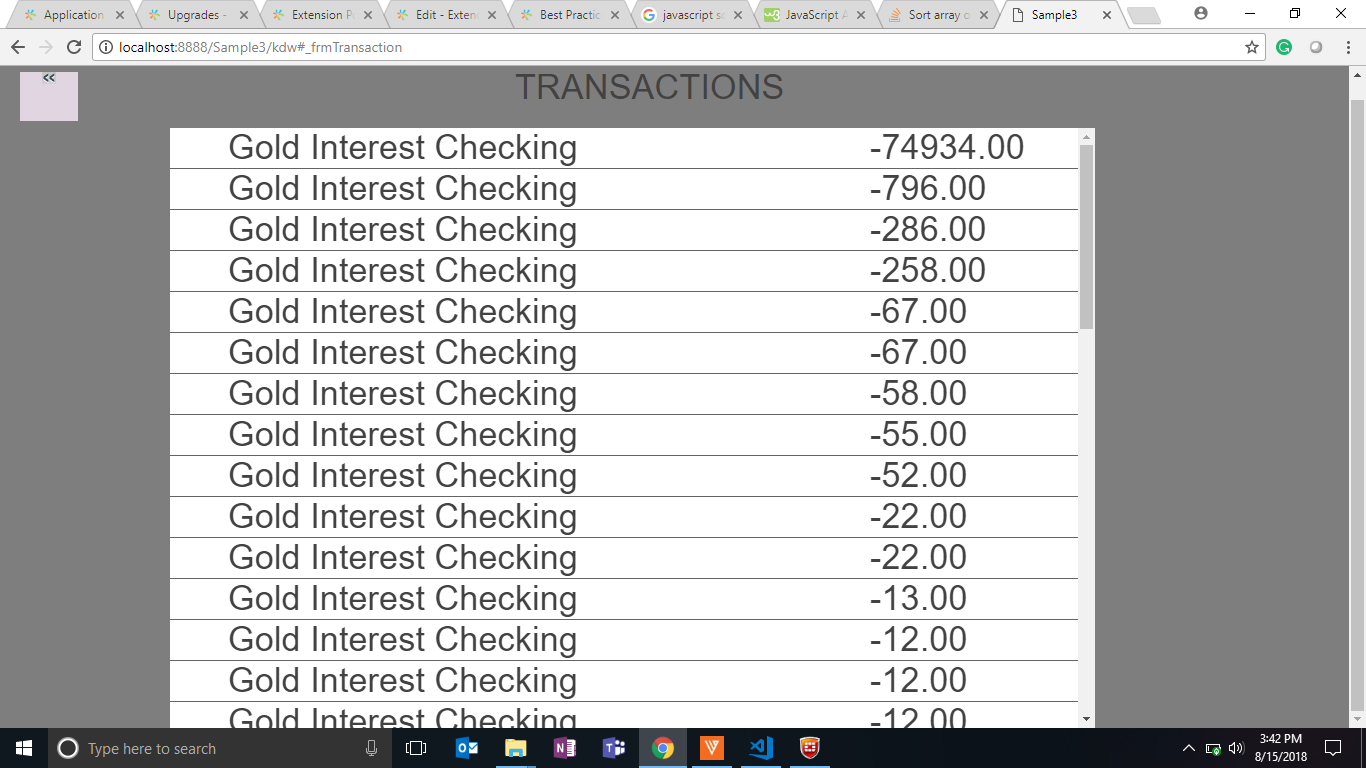
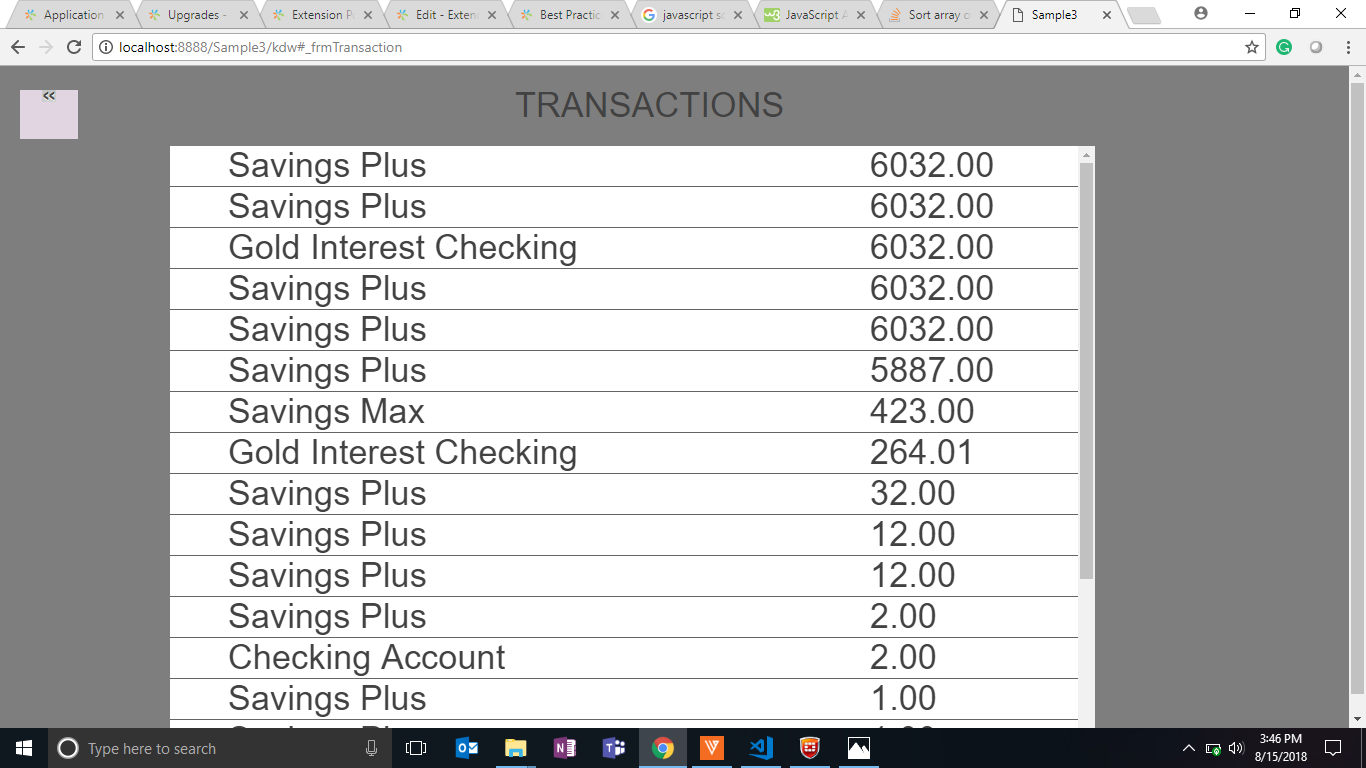
- This logic gives the following response in the reverse chronological order:

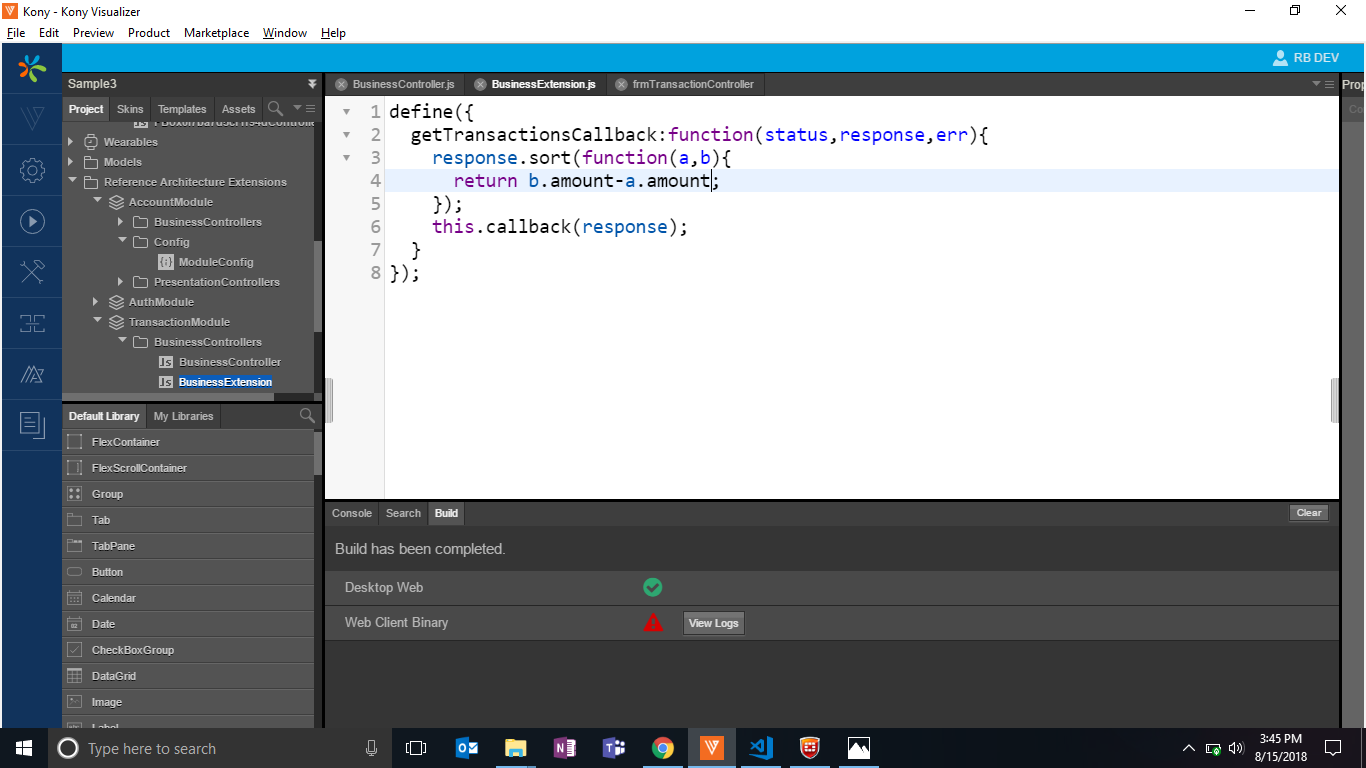
- We can also change the logic in chronological order as follows:


- This way, we can achieve the business extension.
Add Bookmark
save your best linksView Bookmarks
Visit your best links BACK
BACK


Are you sure you want to log-off?